


Role
Design Lead
Tools
Figma, Miro
Timeline
Nov 2023 - Jan 2024
In a hurry? Click here to see a quick rundown of design changes.
Background
User-Defined Waypoints (UDWP) is a feature in Flitedeck Pro that allows users to mark geographic points on the map for future reference. These waypoints can either be permanent (persist on the map until manually deleted), or temporary (disappear when the route is cleared).
While this feature has existed in Flitedeck Pro for several years, some customers have raised concerns about its functionality lately.
Understanding the Problem
I began by having a few conversations with our PMs to better understand the problem we were seeking to address I learned of the following goals :
1) Users have presented confusion about "temporary" vs "permanent" waypoints – we need to clarify that language.
2) We must allow users to create waypoints using radial DME (Distance Measuring Equipment) format in addition to the traditional lat/long format.
3) The processes of creating and editing waypoints should be streamlined.
User Research
I then conducted discovery interviews with pilots from two different airlines to gain a deeper understanding of their grievances and needs.
Three major pain points emerged:
1) Creating New Waypoints Along the Route
Users have difficulty creating new waypoints on their route by dragging ("rubber-banding") existing waypoints to a new location.


2) Temporary vs. Permanent Waypoints
Accidental marking of waypoints as temporary forces users to recreate the same waypoints repeatedly; accidental marking as permanent forces users to delete waypoint manually.
3) Waypoint Creation Type
When looking at previous waypoints, users sometimes forget whether they created a waypoint or if it was created by ATC, which is often necessary context to understand the waypoint's function.

Feature Scoping
After looking at our user feedback vis-a-vis my internal research, I met with the PMs to write user stories and determine scope. Together, we I decided that the following user stories fell under Bin 1:


Design & Iteration
Based on our feature scoping, I began designing the following modifications to our UDWP creation sheet:


Visible Lat/Long in point selection sheet header
Including the lat/long of the location where the user long-pressed on the map to evoke the point selection sheet allows them to verify the exact location of the waypoint.
Updated location cell placeholder text
While the original placeholder text is "Enter Lat/Long," this new text prompts users to enter location in the format of either lat/long or PBD*.
*PBD stands for "Place Bearing Distance" and is the standard format used when entering location based on radial DME.
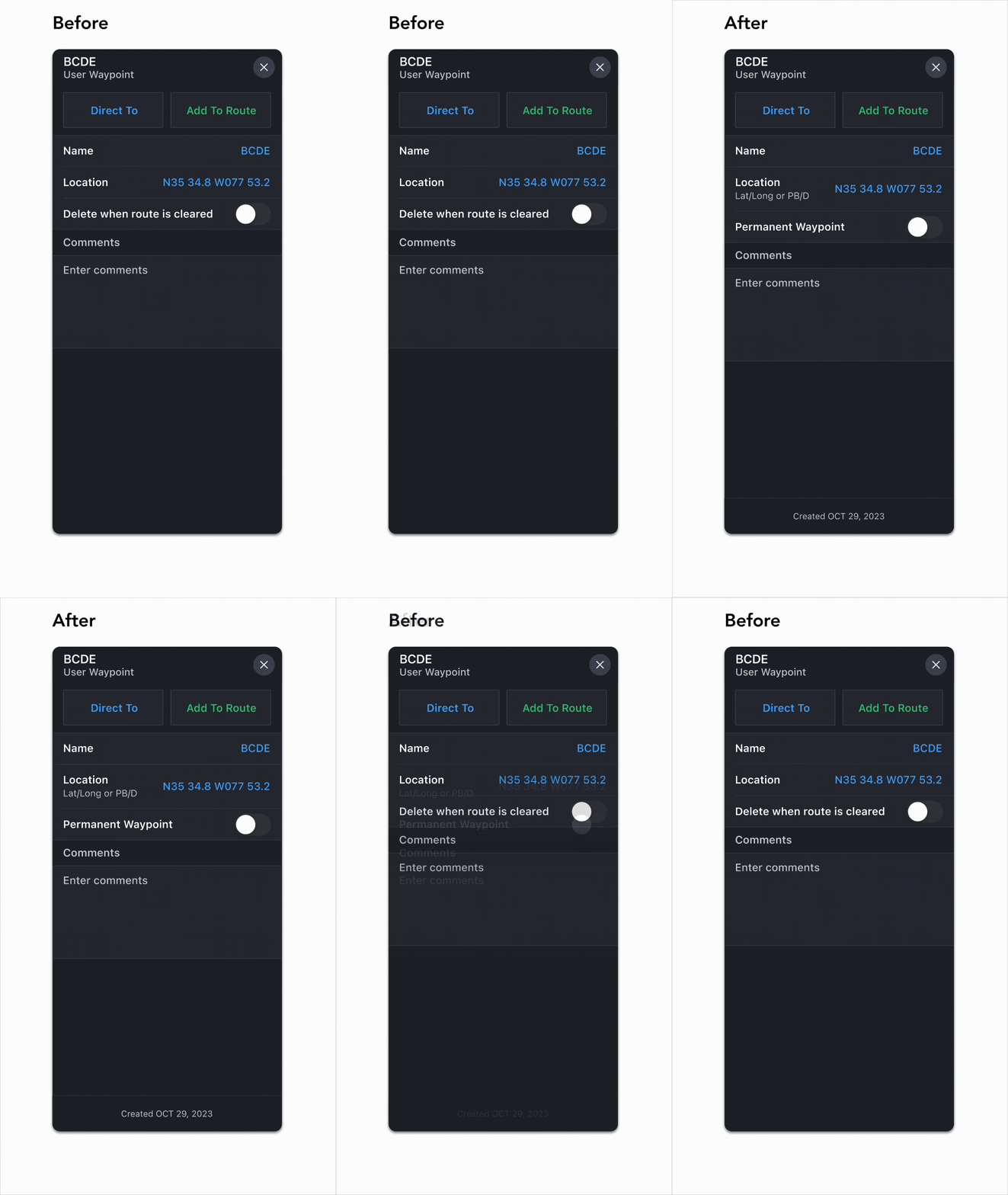
"Permanent Waypoint" toggle
The original text in this cell is "Delete when route is cleared." The updated title more accurately and succinctly indicates the function of this toggle.


"Name already in use" error*
In the original design, if the user attempts to create a waypoint with the same name as an existing waypoint, they are not notified of this error until they tap "Done." At this point, an alert dialog appears.
This new error message appears in the name cell as soon as the keyboard is dismissed, allowing the user to make corrections earlier on in the process.

*One of the PMs reached out after feature scoping to request this change based on new user feedback. Users reported frustration with attempting to create a new UDWP with the same name of an existing UDWP.
Creation date text
This text informs the user of whether they created this waypoint themselves, or if it was imported with their flight plan.
In the latter scenario, the text would read "Imported with flight plan."

Dragging a point along the route
Users expressed frustration with the fact that dragging an existing waypoint on their route to a new location creates a new waypoint that is not on their route. In this updated design, dragging a waypoint and adjusting its location replaces the original waypoint on the route. The original waypoint is still on the map, but no longer on the route.
The user long presses waypoint XYZ, drags it to a new location, and renames it UVW. Waypoint UVW is now on the route, and original waypoint XYZ is not.


.png)
Test Takeaways
A few usability sessions yielded the following results:

-
While users appreciate seeing where they tapped on the enroute map, a visual indicator of this location might be more useful than lat/long coordinates.
-
Users understand that "PBD" indicates "Place Bearing Distance" format, but"PB/D"would be more accurate placeholder text.
-
Users prefer the updated method of rubber-banding a waypoint along the route to create a new waypoint, where the new waypoint replaces the existing waypoint along the route.
-
Users understand that enabling the "Permanent Waypoint" switch will cause a waypoint to persist after the route has been cleared.

-
Users appreciate seeing the "name already in use" error message in the "Name" cell.

-
Users aren't sure what would happen if they tap "Done" while the name error is present. Guesses include that a number will be added to the end of the given title, or that this the new waypoint will replace the existing waypoint with that name.
-
Seeing whether a waypoint was created by the user vs. imported with their flight plan is helpful – particularly in the case case of permanent waypoints – but not critical.

Iteration #2
Based on user feedback from the first round of user testing, I made the following changes:
Crosshairs icon on the enroute map
This crosshairs icon (which already exists in our design system) provides a visual indicator of where the user tapped on the map.
Because the icon appears within a 22px radius of the point tapped, I kept the lat/long in the sheet header to provide a more precise location. This combination offers both geographic precision and visual clarity.


Updated location cell
Per users' recommendations, I changed "PBD" to "PB/D" to match the radial DME format users are most familiar with.
I also decided to move this text from the placeholder text to the subtitle of the cell. If the user creates a waypoint by long pressing on the map, the location cell will auto-populate with the lat/long of the location tapped, hiding the placeholder text. Moving this text to the subtitle allows the user to see it from any state.
Adjusted "creation type" placement
Users liked seeing the method by which the waypoint was created, but didn't feel it was critical enough to merit placement at the top of the sheet.
To conserve that prime real estate, I moved this text to the footer.


Revised name error behavior
Because users disagreed as to what would happen if they tried to press "Done" while the "Name already in use" error is present, I decided that the simplest solution was to disable the button until the error is resolved.
"Invalid Location" error
After revising the name error behavior, I wanted to ensure that the location error behavior matches for consistency's sake.
If the user enters an invalid location, this error appears once the user dismisses the keyboard. Done will remain disabled until the error is resolved.

After the second round of usability testing went smoothly, I decided we had met our MVP.
Final Designs
Name Error States


To make implementation as seamless as possible for our development team, I outlined the following error states in my dev specs:
When the user taps on the name cell and retrieves the keyboard, Done will automatically disable.
If the user enters a valid name, Done enables once the user dismisses the keyboard.
If the user enters a pre-existing name, the error will appear once the user dismisses the keyboard. Done remains disabled.
Once the user deletes the invalid name and dismisses the keyboard, the error disappears and Done is reenabled.*
*Done is enabled when the name cell is empty, as it is possible to create a waypoint without a name. In this case, the waypoint automatically assumes the location as its name.
Location Error States


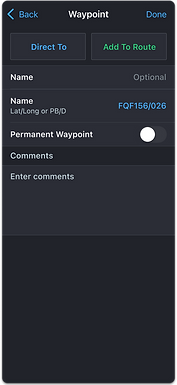
When the user taps on the location cell and retrieves the keyboard, Done will automatically disable.
If the user enters an invalid location, the error will appear within the location cell once the user dismisses the keyboard. Done will remain disabled while this error is present.
If the user deletes the invalid location by pressing the clear icon, the error will immediately disappear and placeholder text will replace the invalid location value. Done will still be disabled.*
If the user enters a valid location, Done will enable once the user dismisses the keyboard.
*Unlike the name cell, the user cannot create a waypoint if the location cell is empty. Therefore, Done will be disabled when the cell is empty.
Finalized waypoint creation process
Below is an example of the most common workflow when creating a UDWP:
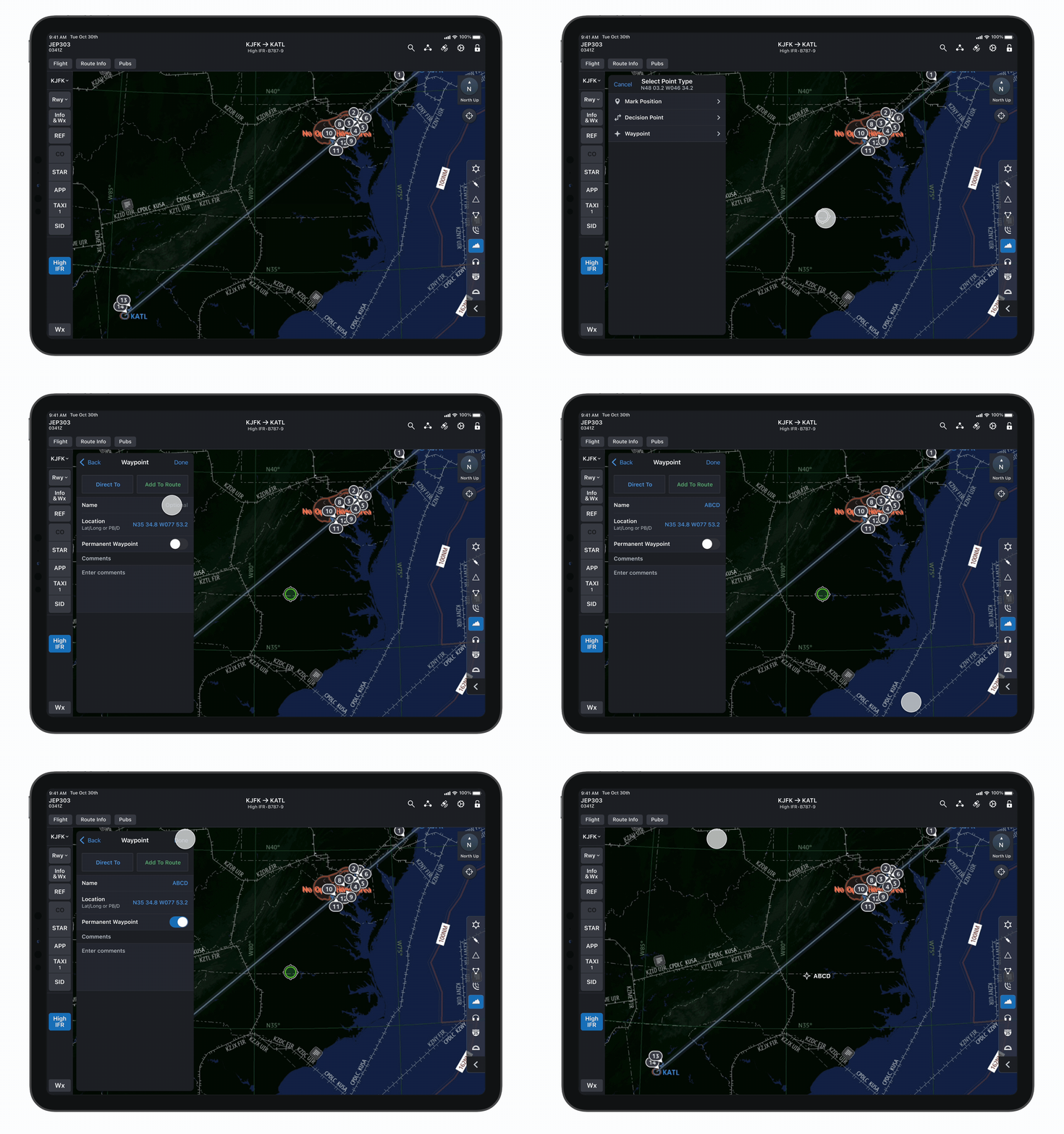
1. User long presses on the map to evoke point selection sheet
2. User selects "Waypoint" as point type
3. Waypoint creation sheet appears with the "Location" cell auto-populated with the lat/long of location tapped
4. User names the waypoint (optional)
5. User adjusts waypoint temporality (optional)
6. User selects "Done"
7. Waypoint appears on the map
In a Nutshell: Before & After
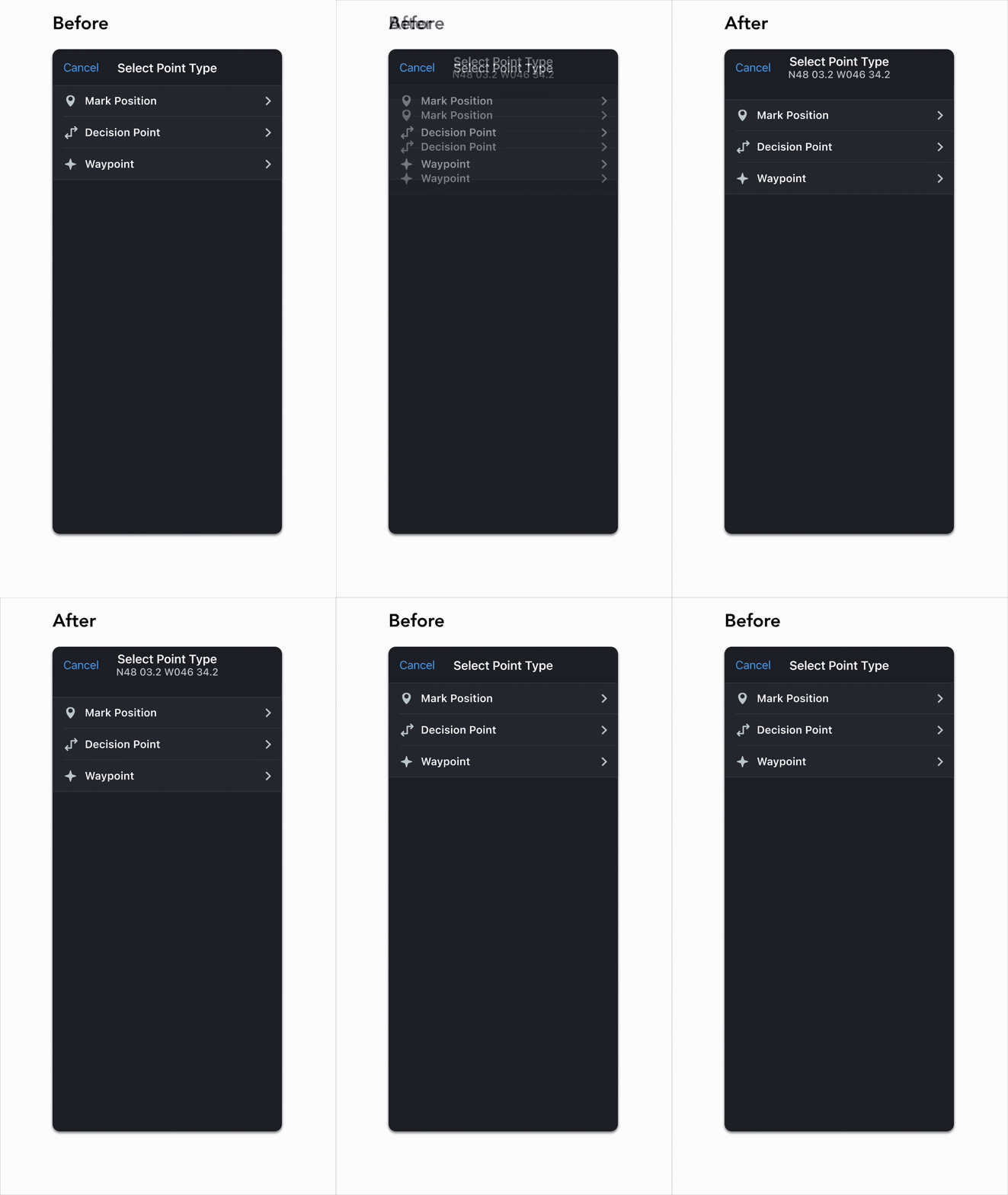
Point Selection Sheet: What Changed?
Inclusion of lat/long in the header of the point selection sheet (as well as crosshairs icon – see above).
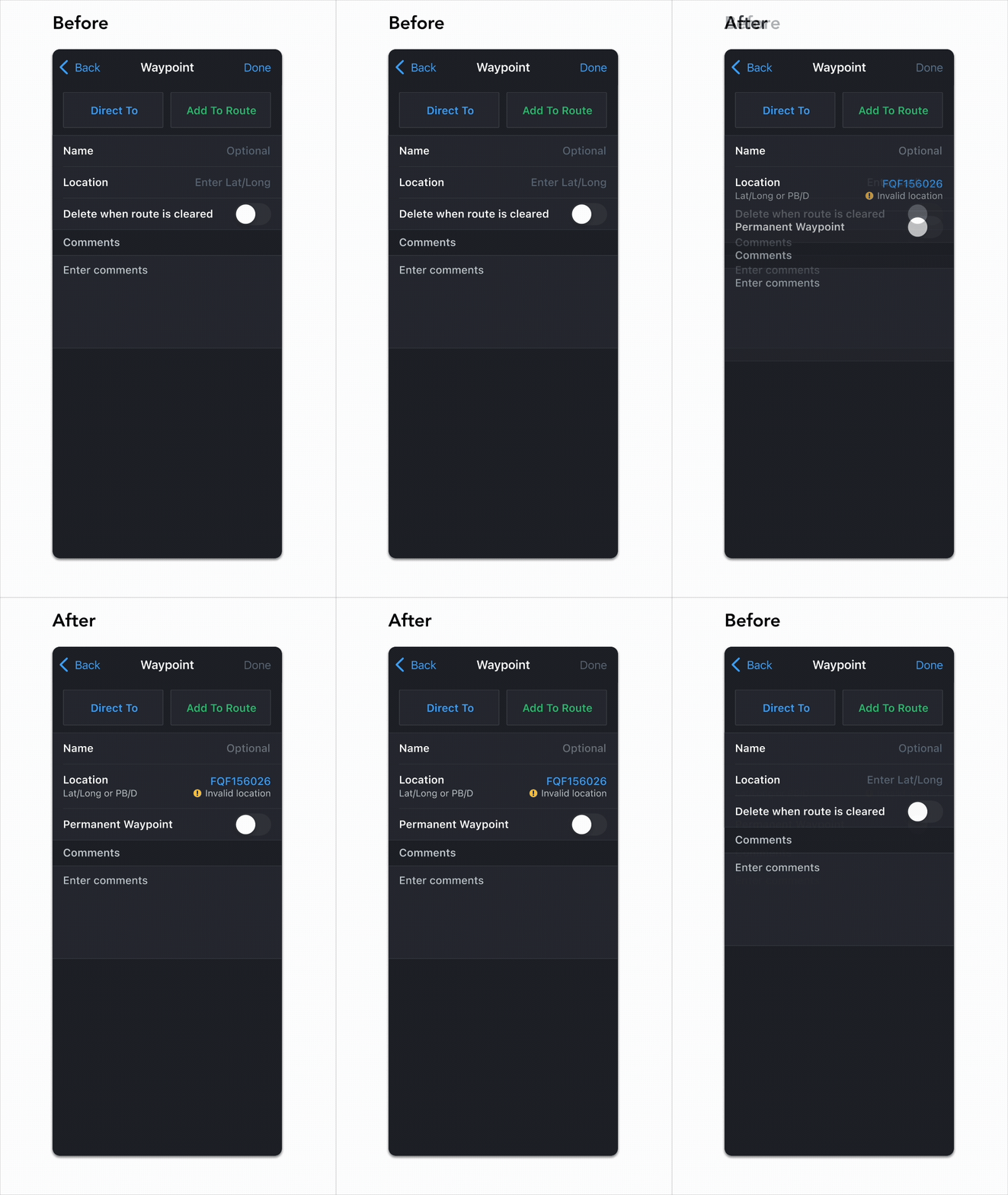
Waypoint Creation Sheet: What Changed?
-
Updated location cell with PB/D subtitle text
-
Waypoint temporality toggle name
-
Updated name and location error states and according "Done" disablement
Viewing Existed Waypoints: What Changed?
Footer indicator of waypoint creation type (user-created vs. imported).
Dragging a Waypoint Along the Route: What Changed?
Before: when the user drags point XYZ to a new location and renames it UVW, point UVW appears as a separate waypoint that is not attached to the route. Point XYZ still exists on the route.
Now: When the user drags point XYZ to a new location and renames it UVW, new waypoint UVW is now on the route. XYZ is still on the map, but not on the route.
.png)
.png)
.png)
Next Steps
We are currently waiting for the development team to implement these changes in the app. Once that has been done, we can revisit the following stories that were placed into bin 2 during feature scoping, as well as any new issues that may arise:


I also plan to look at the following analytics to assess the success of bin 1 and determine next steps:
-
Number of new waypoints created
-
Number of attempts required to create a waypoint
-
How often the "Permanent Waypoint" switch is toggled on and off
Takeaways
This was the first project I worked on in FliteDeck Pro that involves text input from users. Unlike previous projects with more constrained interactions, this required me to design for flexibility and failure – anticipating not only ideal use cases, but also edge cases and errors.
What if the user enters a waypoint name with special characters?
What if they forget the slash in a radial DME input?
What if they paste a geohashed location instead?
Accounting for these edge cases was one of the most rewarding challenges of the project. I had to put on my QA tester hat and think like a user in all the wrong ways – an exercise that deepened my understanding of the feature and strengthened my sense of user empathy. It reminded me that thoughtful UX design isn’t just about guiding users, it’s about supporting them when they go off-script.
Thanks for reading!
